Family Search Walkthrough - Initial Download
Walk through of linking an existing FamilySearch tree to Tree-Me

BackNext: Explore your Family Tree
Starting point
This assumes that you have the app running on your computer.
if not installed, click Download
1. Link to Family Search
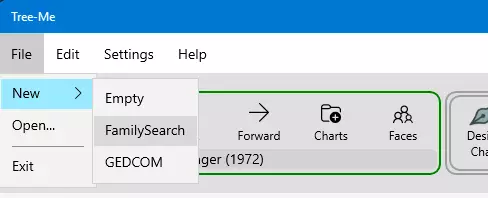
1. On the main menu click File, New, and FamilySearch
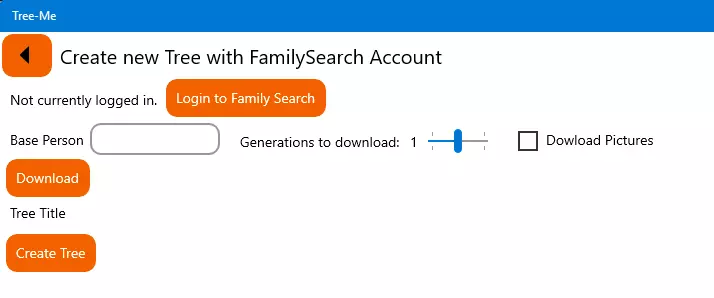
2. Click 'Login to FamilySearch'
If you are already logged in then skip to step 6.
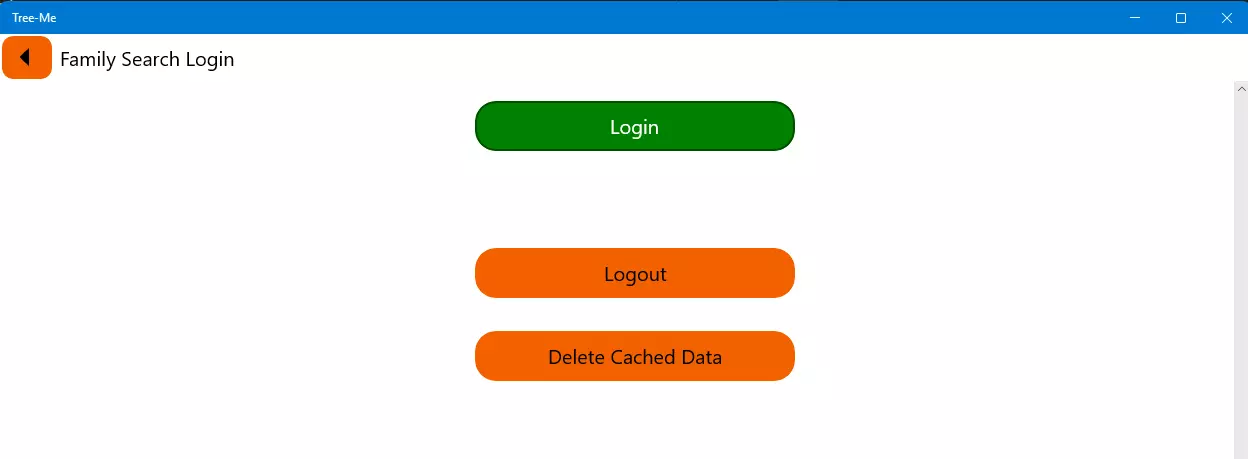
3. Click 'Login'
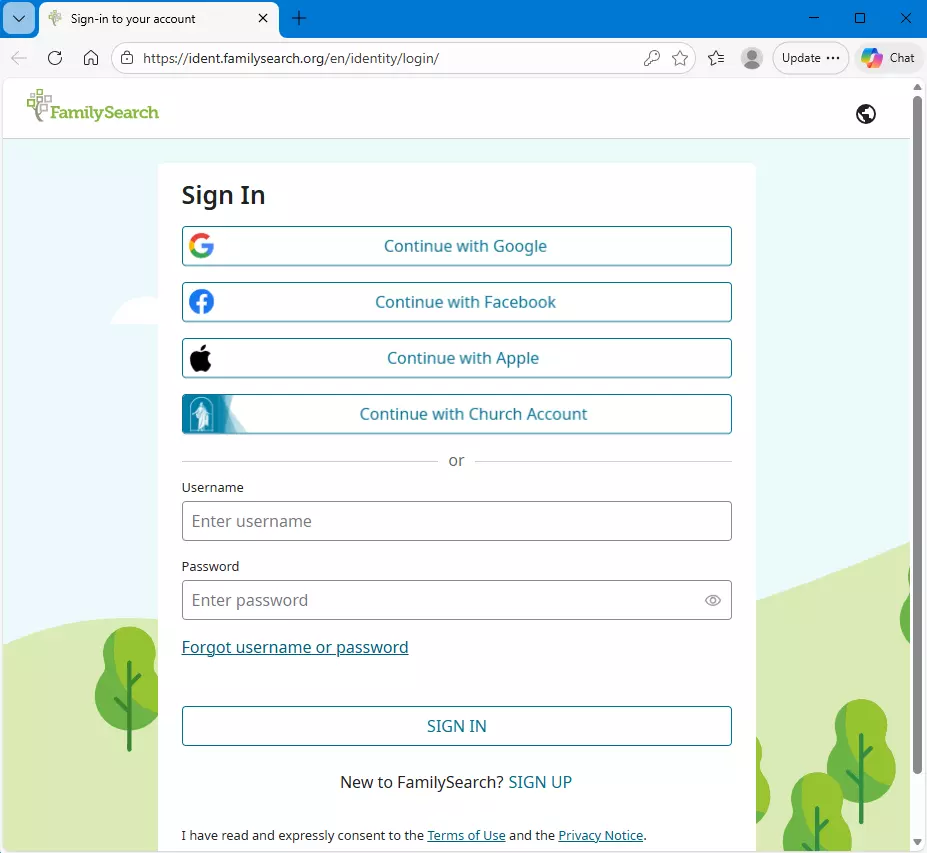
4. Login to FamilySearch the way you normally login.
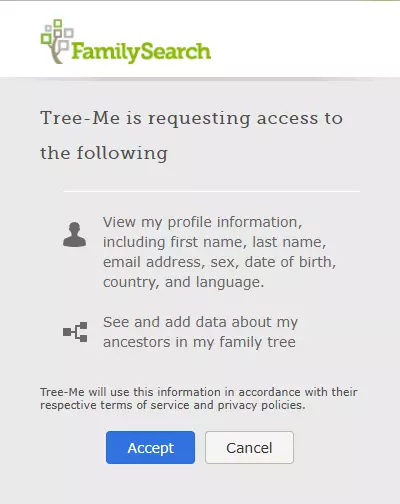
5. Grant permission to Tree-Me to access your FamilySearch data
This step is only done once. Subsequent logins will skip this step.
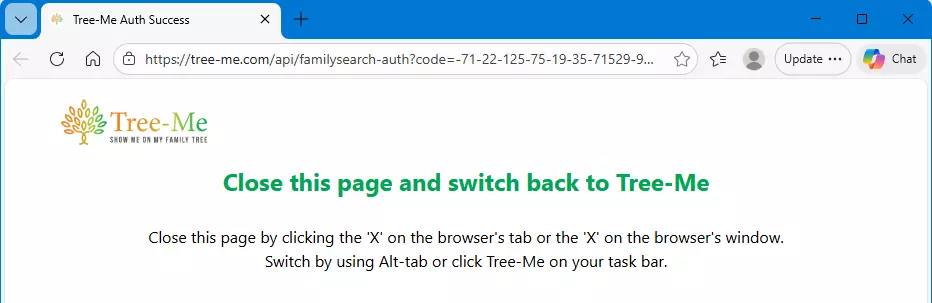
6. Will show the successful login attempt. This page can then be closed and return back to the Tree-Me app.
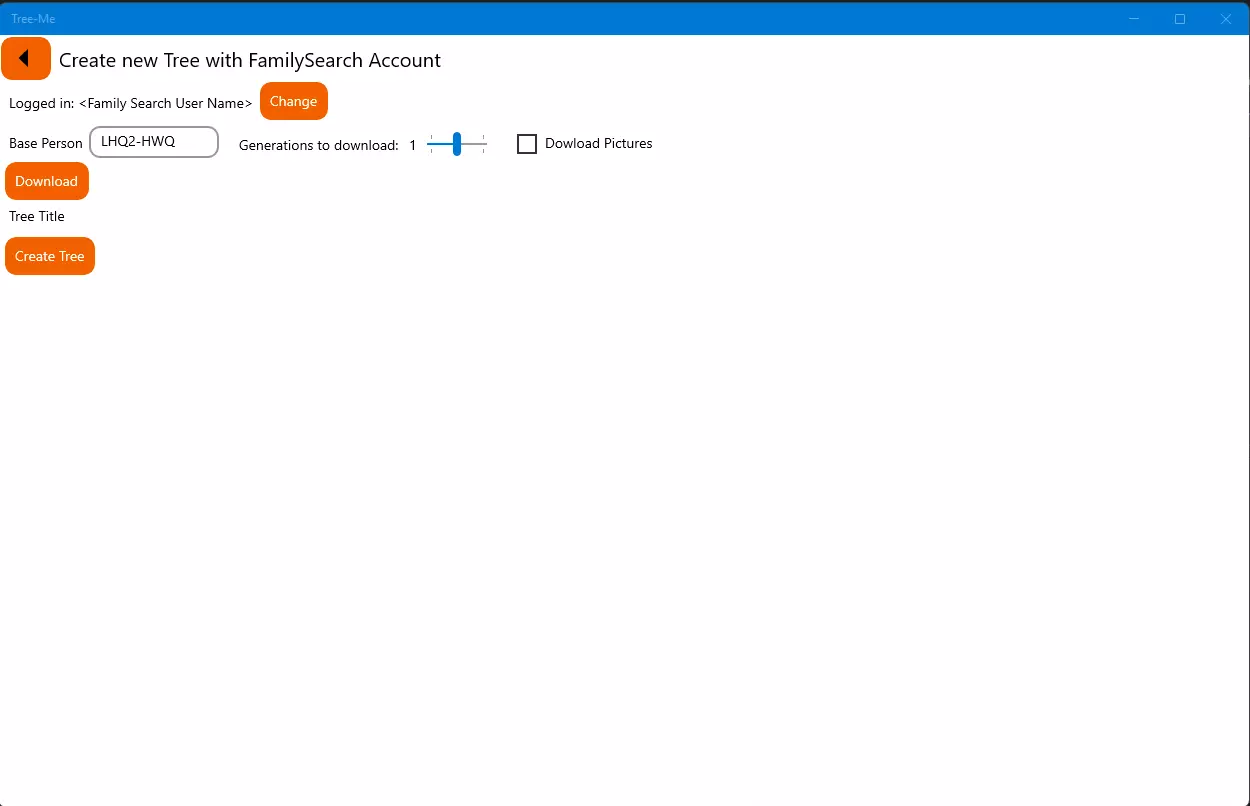
6. Start the Download by Clicking 'Download'
The text to the left of the Change button shows login state. This will show the name associated with your FamilySearch account. If you want to log out then click the Change button.
The base person is the first person in the tree. Leaving the Base Person blank will download yourself as the base person. Or you can enter a specific person such as shown below.
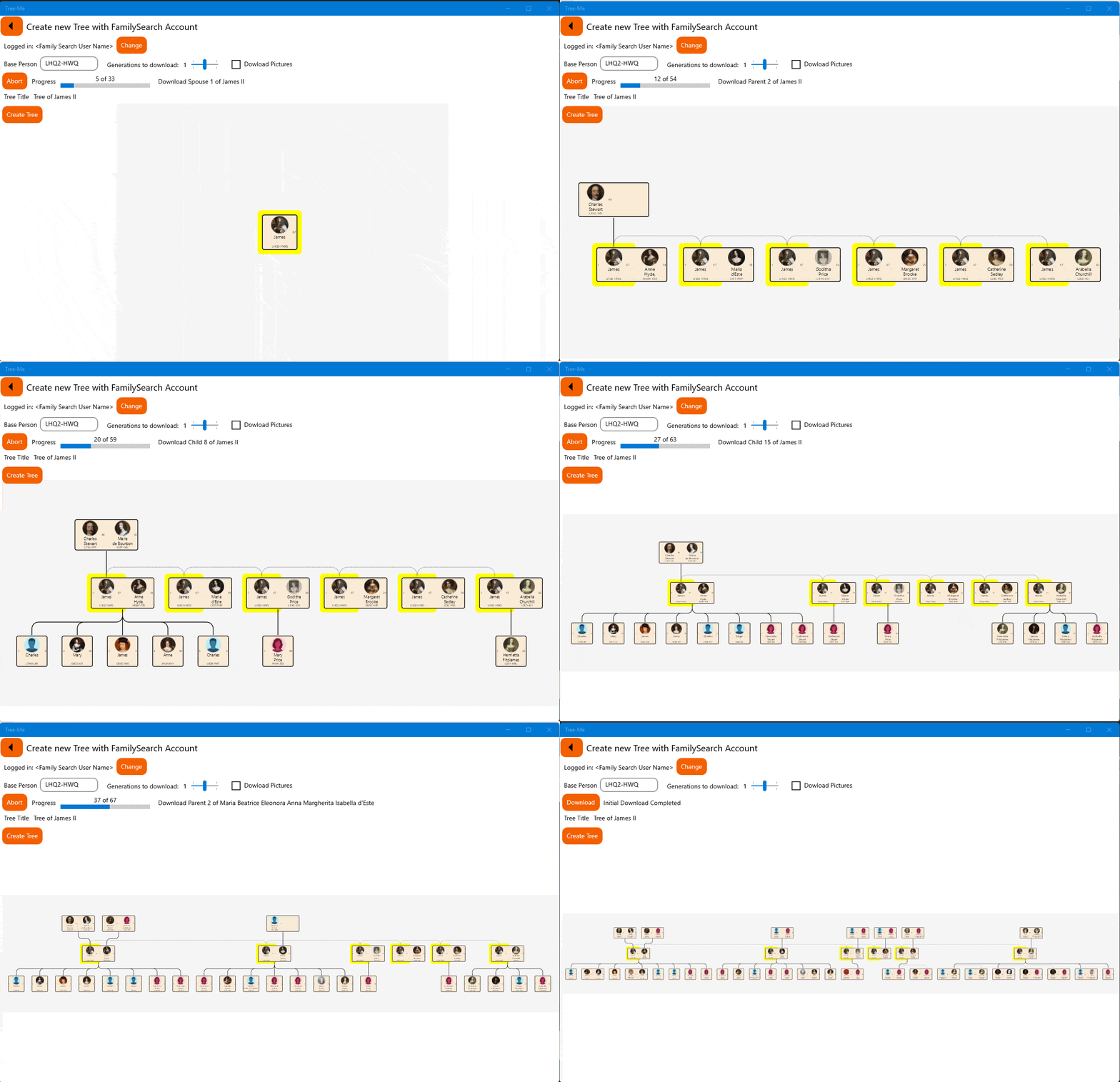
6. Wait while the data downloads
You can choose to download pictures, but this slows the download down. The pictures can be downloaded later when comparing FamilySearch data with Tree-Me data.
7. Click 'Create Tree'